

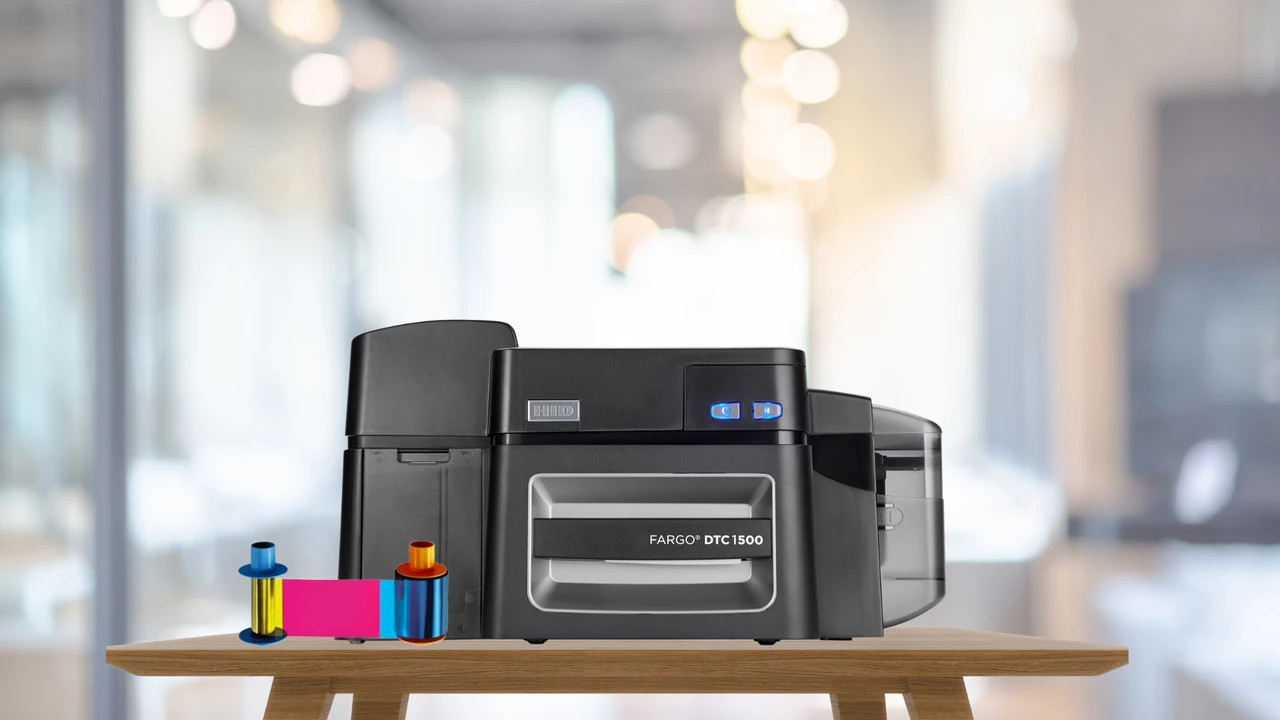
The HID FARGO DTC1500 is a versatile direct-to-card ID printer designed for organizations that need reliable, professional card printing. Available in both single-sided and dual-sided configurations, the DTC1500 can be used for employee badges, student IDs, access cards, identification cards, and other credentialing applications.
Before you can begin printing, you'll need to properly install a compatible ribbon and load blank cards into the printer. Fortunately, the process is simple and can be completed in just a few steps.
In this guide, we'll walk you through how to install a ribbon and load cards into an HID FARGO DTC1500.
What You'll Need
Before getting started, make sure you have:
- HID FARGO DTC1500 ID card printer
- Compatible FARGO DTC1500 ribbon
- Compatible blank ID cards
- Clean, flat workspace
AnythingID offers several ribbon options specifically designed for the DTC1500, including full-color, half-panel, and monochrome ribbons.
How to Install the Ribbon
Follow these steps to install a new ribbon in your FARGO DTC1500.
Step 1: Remove the Ribbon From Its Packaging
- Remove the new ribbon from its protective plastic packaging.
- Handle the ribbon carefully and avoid touching the ribbon material. Fingerprints, dust, or other contaminants can potentially affect print quality.
Step 2: Open the Ribbon Drawer
- Open the printer's ribbon drawer to access the ribbon compartment.
- The drawer provides access to the areas where the ribbon supply and take-up spools are installed.
Step 3: Lift the Cleaning Roller Tray
- Lift the cleaning roller tray to make room for installing the ribbon.
- The cleaning roller helps remove dust and particles from the surface of cards before they are printed, making it an important part of maintaining consistent print quality.
Step 4: Install the Print Ribbon
- Place the ribbon into the printer according to the spool positions.
- The orange spool is the supply spool, while the blue spool is the take-up spool. Make sure each spool is seated correctly before continuing.
- Proper installation allows the ribbon to move smoothly through the printer during the printing process.
Step 5: Lower the Cleaning Roller Tray
- Once the ribbon is installed, carefully lower the cleaning roller tray back into its proper position.
- Then place the cleaning roller onto the tray.
Step 6: Remove the Protective Paper
- Before closing the printer, make sure you remove the protective paper cover from the cleaning roller.
- This step is easy to overlook, especially when installing a new ribbon, but the protective covering needs to be removed so the cleaning roller can function properly.
Step 7: Replace the Ribbon Drawer
- Once everything is properly positioned, replace the ribbon drawer and close it securely.
- Your ribbon installation is now complete.
How to Load Cards Into the FARGO DTC1500
- After installing the ribbon, you can load your blank cards into the printer's input hopper.
Step 1: Open the Card Input Hopper
- Open the card input hopper door on the printer.
- This provides access to the card tray where your blank cards will be loaded.
Step 2: Lower the Card Tray
- Lower the card tray inside the input hopper to prepare it for loading.
- Make sure the tray is positioned correctly before adding your cards.
Step 3: Load Your Blank Cards
- Place your compatible blank cards into the input hopper.
- Be careful not to overload the hopper, and make sure the cards are positioned correctly for feeding. Handling cards by their edges can also help prevent fingerprints, dust, and other contaminants from getting onto the printable surface.
Step 4: Close the Input Hopper
- After loading the cards, close the input hopper door.
- Your FARGO DTC1500 is now ready for a print job.
Choosing the Right Ribbon for Your DTC1500
Selecting the correct ribbon is important for achieving the results you expect from your printer. The DTC1500 supports several ribbon options depending on whether you need full-color, half-panel, or monochrome printing.
For example, YMCKO color ribbons can be used for full-color cards with a clear overlay, while YMCKOK ribbons can print color and black on the back of dual-sided cards. Monochrome ribbons are another option when your cards only require a single-color design.
Before ordering a ribbon, always verify that it is compatible with your specific DTC1500 configuration and the type of cards you plan to print.
Tips for Maintaining Your FARGO DTC1500
Proper supply installation is just one part of maintaining your ID card printer. To help keep your DTC1500 operating reliably:
- Keep the printer clean. Dust and debris can affect card feeding and print quality.
- Use compatible supplies. Choose ribbons and cards designed for the DTC1500.
- Handle cards carefully. Avoid touching the printable surfaces whenever possible.
- Store ribbons properly. Keep unused ribbons in their original packaging and away from excessive heat, moisture, and direct sunlight.
- Perform regular cleaning. Follow the manufacturer's recommended cleaning procedures.
- Replace supplies when necessary. Using depleted or damaged ribbons can result in poor print quality and interrupted printing.
AnythingID carries genuine FARGO supplies for the DTC1500, including color and monochrome ribbons, to help keep your printer performing consistently.
What If Your DTC1500 Isn't Printing Correctly?
If you've installed the ribbon and cards but are experiencing problems, check the installation before troubleshooting more complicated issues.
Make sure:
- The ribbon is installed in the correct orientation.
- The orange supply spool and blue take-up spool are positioned correctly.
- The protective paper has been removed from the cleaning roller.
- The ribbon drawer is completely closed.
- Cards are loaded correctly in the input hopper.
- The cards are compatible with the DTC1500.
- The printer is clean and free of excessive dust or debris.
If the problem continues, the printer may require additional troubleshooting or professional service.
Get the Right Supplies for Your FARGO DTC1500
Installing a ribbon and loading cards into the HID FARGO DTC1500 is a quick and straightforward process. Taking the time to install the ribbon correctly, position the cleaning roller properly, and load your cards correctly can help prevent common printing and card-feeding problems.
Whether you need a new DTC1500 printer or compatible ribbons and supplies, AnythingID is here to help. AnythingID offers FARGO DTC1500 printers in both single-sided and dual-sided configurations, along with compatible color and monochrome ribbons and other ID card printing supplies.
Ready to keep your ID card printing running smoothly? Shop AnythingID for FARGO DTC1500 printers, ribbons, cards, and other ID card printing supplies, or contact us today for help finding the right products for your ID card printing needs.