

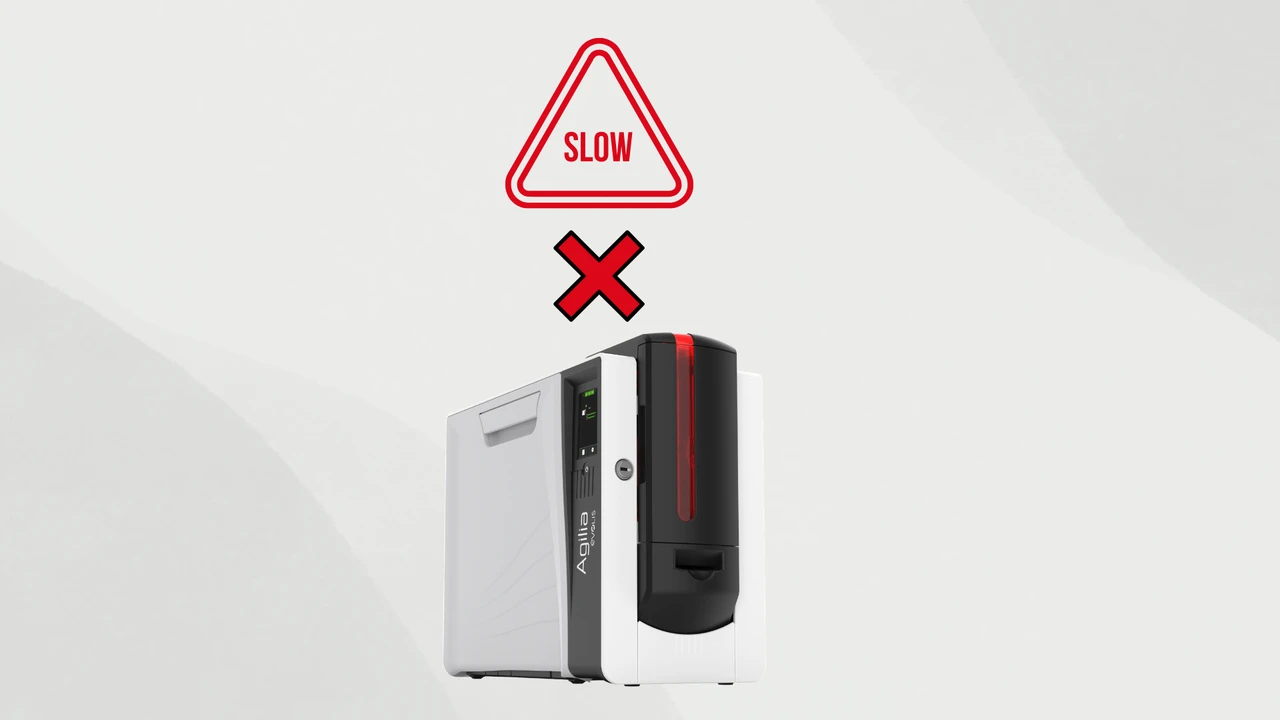
A slow ID card printer can be frustrating, especially when you need to produce badges quickly for employees, visitors, or events. Understanding the causes of sluggish printing and how to fix them can save you time, prevent frustration, and keep your printing operations running smoothly.
This guide walks you through common reasons your printer may be running slowly and practical solutions to improve speed.
Common Reasons Your ID Card Printer Is Slow
1. Print Settings Are Too High
High-resolution settings or heavy color prints can significantly slow down printing. Full-color, high-quality images take longer to process than simple text or monochrome designs.
Solution: Adjust your print settings for speed when high resolution isn’t necessary. Many printers allow you to select a balance between quality and efficiency.
2. Large or Complex Designs
Adding large graphics, multiple images, barcodes, or detailed logos can increase printing time.
Solution: Simplify card designs where possible or pre-process images in the software before printing.
3. Printer Memory Limitations
ID card printers have built-in memory that stores card images before printing. Printing multiple high-resolution cards can overwhelm the memory, slowing down output.
Solution: Print smaller batches or upgrade printer memory if your model supports it.
4. Old or Dirty Printhead
A dirty printhead can cause streaks, faded images, and slower printing as the printer compensates for uneven ink transfer.
Solution: Clean the printhead regularly according to your printer’s maintenance guide. Keeping rollers and cards clean also improves speed.
5. Ribbon and Card Type
Some ribbons, especially full-color or dual-sided ones, take longer to process. Similarly, thicker or specialty cards can reduce print speed.
Solution: Use ribbons and cards that are compatible with your printer, and consider single-sided or simpler ribbons when speed is a priority.
6. Software or Driver Issues
Outdated printer drivers or software can cause slow printing, errors, or delays in processing print jobs.
Solution: Update your printer driver and software to the latest version recommended for your model.
Tips to Speed Up Your ID Card Printer
- Batch printing: Group similar cards together to reduce processing time.
- Simplify designs: Reduce unnecessary images or colors when speed matters.
- Routine maintenance: Regular cleaning of printheads, rollers, and sensors prevents slowdowns.
- Use compatible supplies: Ensure ribbons and cards match your printer specifications.
- Update software and drivers: Keeps communication between your computer and printer efficient.